

Are you the one who is searching for shortcut yet accurate ways to convert CSV data to VCF in just a few clicks? The wait is over. You are just a few clicks away from the best solutions. Read on to explore!
VCF or vCard needs no introduction these days. The standardized format is compatible with 90% of mobile devices, making the export and import process of VCF files easy. You can access a VCF file on your Windows, macOS, iOS, and Android devices without any issues. In the context of contact management, VCF synchronizes contacts across multiple devices. The file extension can save a range of contact details, including URLs, social media profiles, and custom fields. These files are lightweight despite their huge storage capacity.
Why Convert from CSV to VCF?
When it comes to smart contact management, VCF is the preferred choice over CSV. Various reasons make VCF a reliable choice over CSV. We have broken down some specific reasons why VCF is a better choice than CSV:
- VCF files are popular for storing rich contact information, meaning such files can save more than basic contact details, including addresses, notes, and other custom fields.
- As we have already discussed, VCF files are highly compatible, allowing you to access your important contact details on various platforms, from desktops to mobile devices, with ease.
- During the export and import process of contacts, the VCF file is considered safer, as these files can maintain data integrity to a large extent.
- CSV files require a spreadsheet for editing, but in the case of VCF files, there are no such restrictions. The file format allows you to streamline the process.
Manual Methods to Transfer CSV to VCF or vCard
Usually, you have two solutions to export CSV to VCF. One is a manual method, and the other is an automated solution. Manual conversion solutions attract users because they are free, but they have the risk of data loss. An automated solution from a reliable source is the best alternative to a manual solution.
Taking Help of Windows Contacts to Export CSV to vCard
We have divided the method into two steps for better understanding.
Step 1: Importing Contacts from CSV File
- Press the Windows icon to locate ‘Contacts.’
- In the Contacts window, click the Import option.
- Select the file type and click Import.
- Now, select specific CSV files holding contacts.
- Click Next and press Finish to conclude the import.
Step 2: Exporting Contacts to VCF Files
- In the Contacts window, click Export.
- Select vCard (folder of .vcf files) and click Export.
- Choose the target CSV file.
- Direct the location to save your new VCF file.
- In the end, press Save to complete the process.
Using Google Contacts to Export CSV to VCF
This method includes two steps. Follow them as directed to achieve conversion of CSV to VCF manually.
Step 1: Import CSV Contact Data
- Click on a web browser and search for Google Contacts.
- Sign in with your Gmail address.
- Click More and select Import from the dropdown list.
- Click Select File and then target the desired CSV file.
- Press Import to upload your contacts.
Step 2: Exporting Contacts as VCF Files
- Click More once again.
- Choose Export from the dropdown options.
- Then, select vCard as the export format.
- Press Export, and your contacts will be saved in VCF files.
Remember, the following manual method is not a good choice when you want batch migration. The best alternative is to use an automated conversion program.
An Automated Solution to Export CSV to VCF- a Professional Method
One of the best automated solutions is none other than TrustVare Contact Manager, which allows you to convert CSV to VCF and import VCF into CSV. This advanced application also supports merging and splitting vCard files. This is an interactive program to use on your Windows system.
Key Features of this Automated Solution
- The conversion program supports batch migration, where a range of CSV files can be exported to VCF within a few clicks.
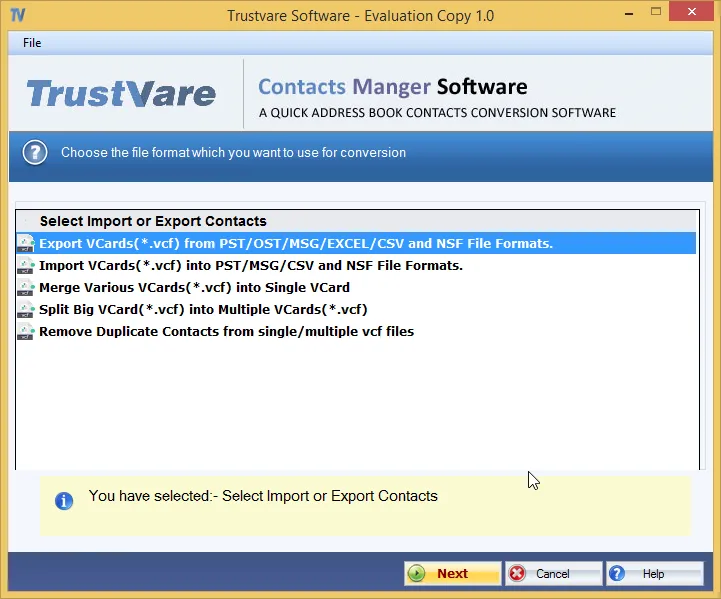
- The tool allows filtration by date. You can enter the From and To details to conclude the export process.
- During conversion, be it batch or single file, the conversion program gives accurate results, retaining all contact properties.
- The licensed version of this program enables conversion of indefinite CSV files to VCF files.
Try the free trial version to understand the key function of this advanced solution.
Conclusion
Technically, you have two options to transfer CSV to VCF, one is a manual solution, and the other is a professional tool. We recommend you try both solutions to choose the most suitable one. If you have a large number of CSV files to export to VCF, the professional tool can save you effort and time. Carefully select a solution after considering your priorities.
FAQs
Ques: What are the reasons to choose an automated tool over a manual solution to export CSV to VCF?
Ans: Reasons to choose an automated tool over a manual solution:
- A manual solution has no guarantee of data accuracy.
- A manual solution has limitations for conversion; you cannot export data in batches.
- It is a time-consuming process.
Ques: Why should I choose a TrustVare tool?
Ans: It is a leading online platform for conversion programs, which has passed several phases of quality testing. At the same time, its interactive interface and affordable pricing make it a one-stop solution for third-party tools.