

Summary: Searching for reliable ways to split vCard files? There is no need to look anywhere else, because the methods discussed here are easy to follow and reliable.
VCF is a standard file format used to organize single or multiple contacts. The file format is compatible with Windows, Mac, iOS, and Android, making it a universal choice for storing and sharing contacts.
Need for Splitting vCard Files
There are various occasions when users want to split a vCard file. Some of the most common reasons include:
- It is essential to manage the size of vCard files. Splitting helps to organize and handle them more efficiently.
- Sometimes, you may want to share specific contacts instead of the entire contact list. In such cases, the splitting process becomes necessary as it makes selective sharing easy.
Taking Help of Text Editors to Split vCard Files
Text editors like Notepad or TextEdit can be used to simplify the process of splitting vCard files. This is a popular method for smaller-sized vCard files rather than for larger ones, so be careful about the file size when you choose this method. Below are the steps given. Follow them carefully.
- First, access the target VCF file in a text editor.
- Since VCF is plain text, each contact will be separated by a block of text starting with BEGIN: VCARD and ending with END: VCARD.
- All you need to do is copy the one block of text (which contains one contact’s details) and paste it into a new file to create a VCF file for each contact.
- Save the file with VCF extension (e.g., contact1.vcf).
Note: No doubt, the method is free of cost and simple to follow, but it can be lengthy if you have a large number of contacts to separate. You need to be careful of file separation.
Also Read: How to Convert CSV to VCF Files
Using Google Contacts to Separate vCard into Multiple Contacts
Do you know Google Contacts can help you extract contacts from a vCard file to create multiple vCard files? In this process, you first import the vCard databases into Google Contacts. After that, you can extract individual contacts to save them separately. The following manual method has three steps to follow carefully.
Importing the VCF File to Google Contacts
- Access Google Contacts
- In the left menu, click “Import”.
- Now, press the “Select file” tab and upload the target VCF file.
- Once again, click “Import” to transfer data to Google Contacts
Exporting Contacts Individually to VCF Files
- In the left menu, click “Export”.
- From the export dialog, choose “vCard (for iOS Contacts)”.
- Press “Export” to allow Google Contacts to create a VCF file.
- In this way, Google Contacts creates a separate VCF file for each contact.
Extracting Individual VCF Files
- For smart contact management, a Zip file will be created holding VCF files.
- Extract VCF files from the particular ZIP file.
This is how you can achieve successful manual separation of VCF contacts.
Taking Assistance of Windows Contacts to Split vCard Files
In this manual solution, you can take the help of Windows Contacts to successfully split vCard files. We have separated the following method into two steps to help you grasp the process.
Importing the Target VCF File to Windows Contacts
- Click Win + R, type web, and press Enter to access Windows Contacts.
- Press the “Import” tab from the menu.
- Now, choose the desired “vCard (VCF) File” and press Import.
- Browse to your VCF file and click Open.
- Windows Contacts will upload the VCF file.
Exporting Contacts Separately to Create Split vCard Files
- Select all the imported contacts, press Ctrl + A for this.
- Press “Export” and select the vCard file.
- Now, choose a local folder where you want to organize your individual VCF files.
- Click OK to give the command to save VCF files separately.
Points to Read Before You Choose Any of These Manual Methods
These are important points you shouldn’t miss.
- Make sure you have selected the healthy VCF file to split.
- Windows Contacts may not be suitable for all vCard versions.
- Chances of losing contact details during the import/export process.
- Google Contacts creates a Zip archive for VCF files.
- Any of the manual methods may be suitable for large VCF files.
- Windows Contacts is for older versions of Windows rather than Windows 10 and later.
- Batch migration is not supported by any of the manual methods.
- Recommending creating a copy of the target VCF file before splitting it.
- Formatting issues may be common for contacts with special characters.
- Some fields may go missing or not be preserved.
Split vCard files without Hassle with an Automated Solution
According to experts, one of the best alternatives to a manual solution is an automated one. Download the TrustVare Contact Manager application on your Windows system. This is an all-in-one solution to split single and multiple vCard files. The interactive interface of the application requires no technical expertise to operate. In other words, even if you are a novice, you can run this program without hassles.
Prominent Feature of the Automated Solution
- The tool is interactive to manage the swift split process of VCF files.
- It enables batch conversion, where you can choose to export multiple VCF files.
- The export result is satisfactory. It splits each VCF field and scans contact details.
- The app removes duplicate contacts, allowing you to split VCF files with high-quality results.
- The licensed version of this app is valid for an unlimited duration. Hence, you can split as many VCF files as you want.
Steps to Conclude the VCF Split Process
- Download this application on your Windows system.
- Select “Split big vCard into multiple vCards” and press Next.
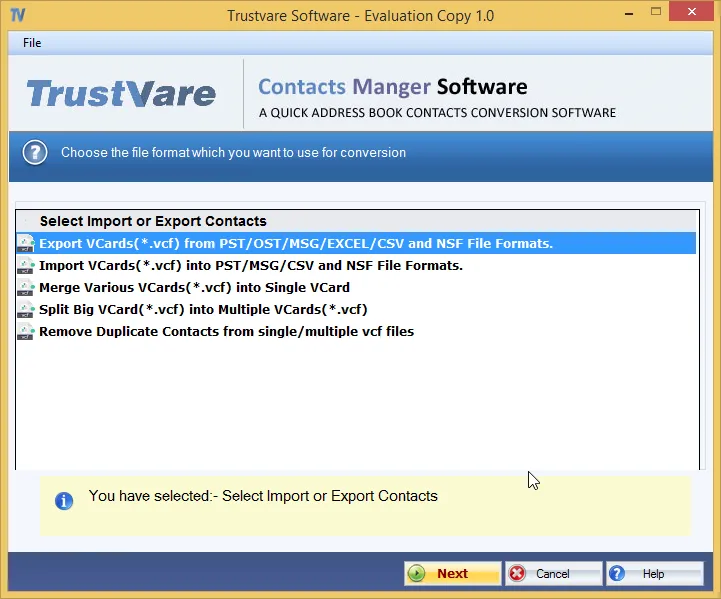
- Now, select by file or by folder, then “Browse” to choose the vCard files.
- Press Next and then “Browse” for output location.
- Finally, press the “Split” button to start the process.
Conclusion
Overall, split of VCF files is easy both manually and automatically. However, the manual process is suitable when you have small-sized VCF files. For larger VCF files, it is always good to choose a reliable automated solution to successfully complete the process.